Migrating an established publication from Google’s Blogger (Blogspot) platform to self-hosted WordPress represents a major milestone for growing websites. While WordPress offers superior architectural flexibility, custom post types, advanced plugin ecosystems, and fine-grained caching control, an unmanaged migration can decimate years of accumulated organic search rankings overnight.
The primary hazard during any platform migration is the breakdown of historical URL equity. When search engines encounter broken links, missing redirects, or disrupted internal hierarchies, indexed URLs disappear from search engine results pages (SERPs). This step-by-step engineering blueprint details how to execute a controlled Blogger to WordPress migration. While careful URL mapping, permanent redirects, content preservation, and active Search Console monitoring significantly reduce migration risks, search engine rankings and traffic fluctuate and cannot be guaranteed during a platform transition.
1. Phase 1: Pre-Migration Audit and Content Export
Before modifying DNS settings or provisioning hosting, create a comprehensive inventory of your existing Blogger site:
- Crawl Your Existing Site: Use a crawler or sitemap tool to export every published URL, its canonical tag, title tag, and associated images.
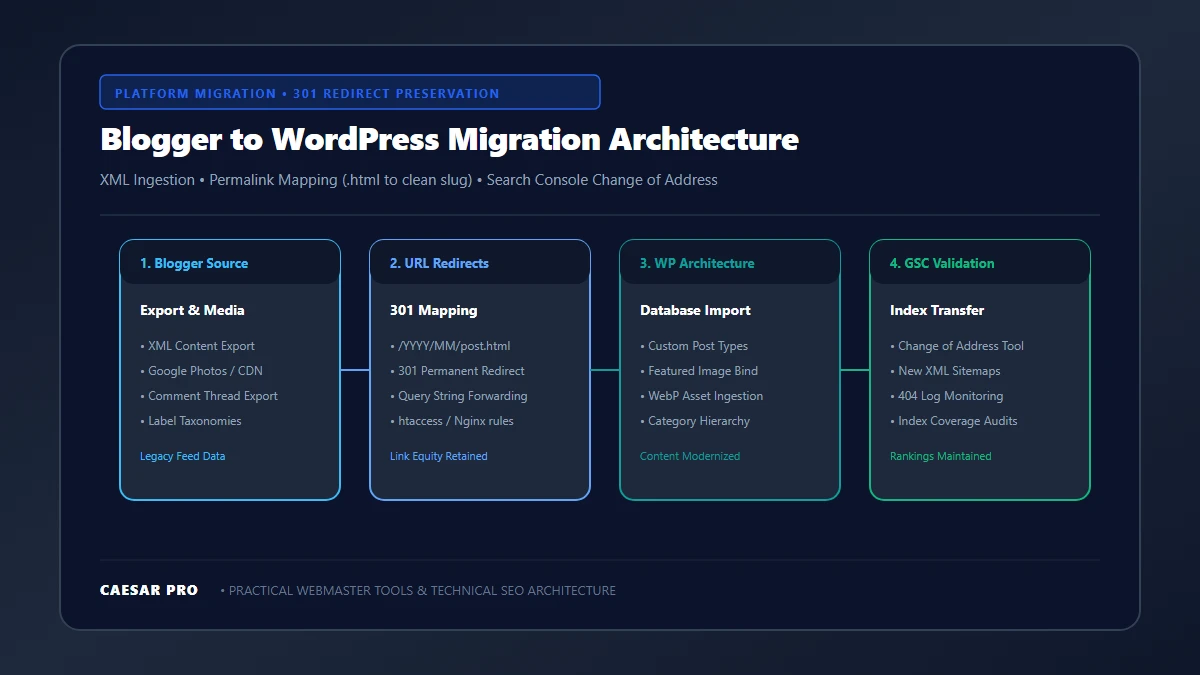
- Export the Blogger Content Database: In your Blogger administration dashboard, navigate to Settings → Manage Blog → Back up content. Click Download to save the complete XML archive containing all posts, static pages, and comments.
- Export Media URLs: Verify that image links in the XML file point to Google usercontent domains (e.g.,
blogger.googleusercontent.comorbp.blogspot.com). These images remain live on Google’s CDN even after domain DNS records are pointed elsewhere, ensuring you have ample time to import assets locally.
2. Phase 2: Importing Content into WordPress
WordPress includes native import utilities designed specifically for Blogger XML feeds:
- Navigate to your WordPress dashboard under Tools → Import.
- Locate the Blogger importer and install it.
- Upload your saved Blogger XML backup file and assign the imported posts to your primary WordPress author profile.
- Important: After the import finishes, navigate to Posts → All Posts and verify that post titles, formatting, publication dates, and categories accurately reflect your original publication.
3. Phase 3: The Critical Challenge — Blogger vs. WordPress Permalinks
Blogger enforces a rigid, non-configurable permalink structure based on the publication year and month, terminated with a .html extension:
Blogger URL Structure:
https://example.com/2024/03/how-to-fix-crawl-errors.html

Standard WordPress URL Structure:
https://example.com/how-to-fix-crawl-errors/
Furthermore, Blogger truncates URL slugs longer than 39 characters. If you simply import content into WordPress without configuring permalink redirection, every historical backlink and indexed URL will return an HTTP 404 Not Found error, wiping out your organic traffic.
Configuring Regex 301 Permanent Redirects
To preserve link equity, you must implement server-level HTTP 301 Permanent Redirects that map every historical Blogger URL pattern directly to its new WordPress counterpart. If your new WordPress site uses the clean /%postname%/ permalink structure, implement the following rewrite rule in your web server configuration (or Rank Math’s Redirections module):
Source Pattern (Regex):
^/([0-9]{4})/([0-9]{2})/([^/]+)\.html$

Destination URL:
https://example.com/$3/

Redirect Type:
301 Permanent Move
This regular expression captures the post slug (group 3) and automatically forwards Googlebot and human visitors to the modern clean permalink while signaling to search engines that the move is permanent.
Handling Blogspot Mobile Parameters (?m=1 and ?m=0)
Blogger dynamically appended ?m=1 query parameters to URLs requested by mobile devices. Search engines frequently indexed these variant URLs. Ensure your redirect rules strip or normalize the m=1 query parameter to prevent duplicate content loops and canonical confusion.
4. Phase 4: Image Attachment and Internal Link Hygiene
While external images hosted on Google usercontent CDNs will initially continue to load, true platform independence requires downloading image attachments into your local WordPress media library (/wp-content/uploads/):
- Use an asset import utility to fetch external images and create proper WordPress attachment records with appropriate width, height, and WebP formats.
- Search and replace historical internal links pointing to your old
blogspot.comdomain or.htmlextensions so that all internal cross-references use direct canonical WordPress permalinks.
5. Phase 5: Search Console Verification and Monitoring
Immediately after switching DNS records:
- Submit Updated Sitemaps: Submit your new WordPress sitemap index (validate with our XML Sitemap Generator, or inspect our guide on Canonical URLs Explained).
- Monitor the 404 Not Found Report: Regularly inspect Indexing → Pages → Not Found (404) in Search Console during the first 30 days. Any unexpected 404s indicate missing redirect rules that must be patched immediately.
- Inspect Crawl Stats: Confirm that Googlebot’s request volume increases as it discovers the 301 redirects and updates its index to reflect your new canonical URLs.
Conclusion
Migrating from Blogger to WordPress does not have to cost you search visibility. By auditing historical URLs, deploying robust regular-expression 301 redirects, localizing media assets, and actively monitoring Search Console coverage metrics, you can successfully transition your publication to WordPress while mitigating traffic disruption and establishing a modern foundation for future growth.